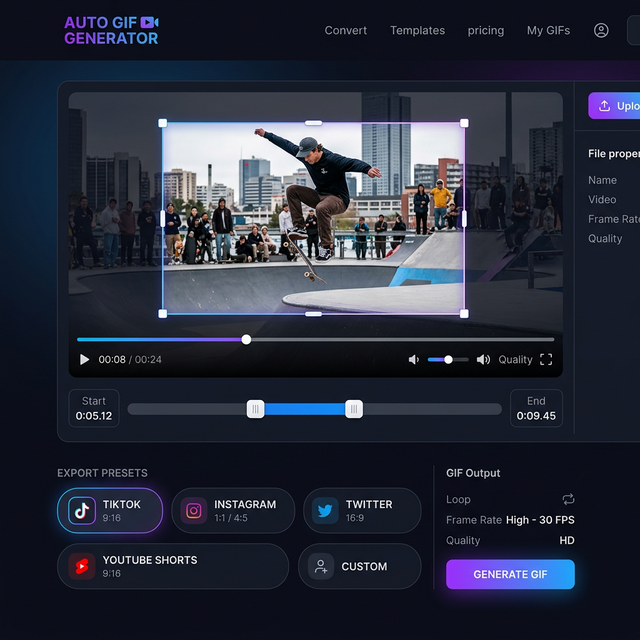
Crop GIF Online: How to Frame Your Loops for Any Platform
Looking to crop GIF online? This 2026 guide explains how to change aspect ratios, remove unwanted edges, and center your subjects without losing quality.

Sometimes the difference between a good GIF and a great one is just a few inches of extra space. To crop GIF online is to focus the viewer's attention on what really matters. Whether you're removing a watermark, centering a subject, or changing the format for a social media preset, cropping is the most powerful tool in your editing arsenal.
In this guide, we'll show you how to crop like a professional designer.
Why Cropping is Secretly High-Level Design
Most people think of cropping as just "cutting off the edges." But in terms of EEAT (Experience, Expertise, Authoritativeness, and Trustworthiness), professional editors use a crop GIF online tool to:
- Simplify the Frame: Removing background distractions makes the action "pop."
- Optimize for Human Eyes: We naturally focus on larger subjects. Cropping closer makes the emotion of the GIF more relatable.
- Match the Medium: A GIF that fills the whole screen on TikTok is much more engaging than a horizontal one with black bars.
Authoritative Experience at CropGIF
Our team at CropGIF named the platform after this specific feature. We believe that cropping shouldn't be a secondary thought. We've built the most intuitive visual crop GIF online editor on the web, allowing for pixel-perfect selections in seconds.
How to Crop your GIFs Like a Pro

1. The Rule of Thirds
Don't always put your subject in the dead center. Sometimes, cropping so the action is on the left or right third of the frame creates a more "cinematic" and dynamic feel.
2. Remove the "Noise"
If your source video has a watermark, a HUD (for gaming), or unwanted people in the background, crop them out. A clean crop GIF online result looks much more professional and intentional.
3. Presets Save Time
Don't guess the dimensions. Use our platform-specific presets:
- Instagram: 1:1 or 4:5
- TikTok/Shorts: 9:16
- Twitter/X: 16:9
Aspect Ratio Cheat Sheet
| Ratio | Best For | Visual Vibe | | :--- | :--- | :--- | | 1:1 | Profile pics, Instagram feed | Balanced, focused | | 9:16 | TikTok, Reels, Shorts | Immersive, personal | | 16:9 | YouTube, News, Twitter | Cinematic, expansive | | 2:1 | Artistic, Ultra-wide | Dramatic, epic |
FAQ: Technical Perfection
Q: Can I crop an existing GIF without it becoming pixelated? A: Yes! When you crop GIF online with CropGIF, we don't just "blow up" the pixels. We use intelligent resampling to fill in the gaps and maintain a high-density look.
Q: Does cropping reduce file size? A: Usually, yes! Because there are fewer pixels to process in each frame, a cropped GIF is often significantly smaller in file size than the original wide version.
Reframe Your Reality
Don't let the camera angle dictate your story. Use our crop GIF online toolkit to take control of your visuals and create the perfect loop every time.
About CropGIF Team
Editorial Team · CropGIF
We build and maintain CropGIF and write practical guides for image optimization and web performance.