Video Highlight to GIF: How to Capture Epic Moments Instantly
Learn how to convert any video highlight to GIF in seconds. This guide covers trimming, quality optimization, and sharing your best gaming or sports moments.
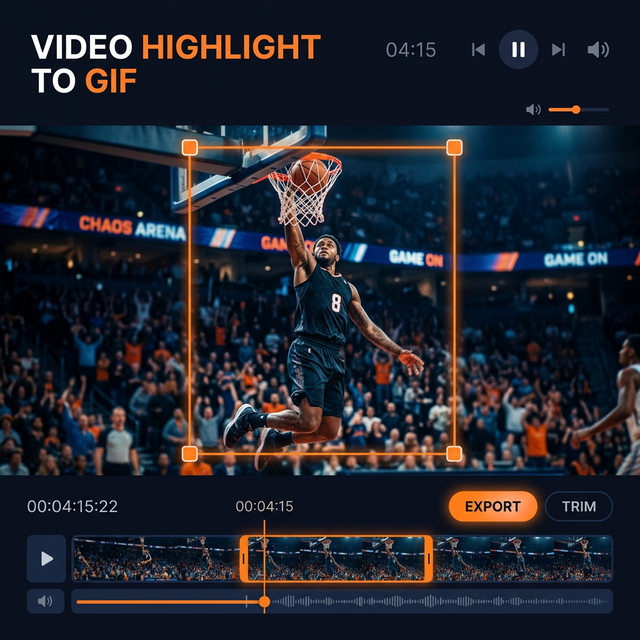
Whether it's a game-winning goal, a flawless triple-kill in Valorant, or a hilarious blooper, some moments deserve more than just a timestamp. They deserve to be a GIF. Converting a video highlight to GIF is the most effective way to share those epic slices of life across social media, Discord, and Slack.
In this guide, we'll show you how to transform raw footage into perfectly looped highlights using our professional-grade tools.
Why GIFs Are Better for Highlights
Technically, a video might have better resolution, but a GIF wins in several key areas:
- Autoplay: GIFs play instantly on almost every platform without requiring a "play" click.
- Looping: The repetitive nature of a GIF makes high-action moments feel more intense.
- Integration: From Discord emojis to Slack reactions, GIFs are the native language of the web.
Our Experience with Highlights
As the team behind CropGIF, we've processed millions of conversions. We've seen that the best highlights share three traits: timing, framing, and quality. Our tool is designed specifically to optimize all three for you.
Step-by-Step: Converting Highlights to GIFs
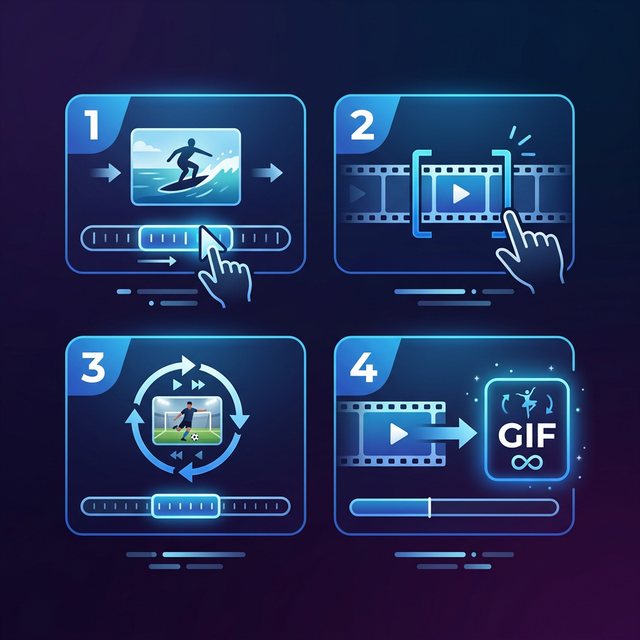
1. Identify the "Key Moment"
Don't include the buildup. Start the GIF exactly 0.5 seconds before the action starts and end it immediately after the climax. This creates a punchy, high-energy loop.
2. Precise Trimming
Use our timeline sliders to isolate the highlight. Our tool allows for sub-second precision, ensuring you don't catch any unwanted frames at the start or end.
3. Frame the Action
Use the Crop tool to zoom in on the most important part of the video. If it's a sports highlight, get close to the ball. If it's a gaming clip, simplify the UI clutter and focus on the crosshair.
4. Optimize for Sharing
A high-quality 4K video can result in a massive GIF. Our engine automatically applies Smart Compression to keep your highlights under 10MB while maintaining a professional look.
Best Practices for Highlight GIFs
| Aspect | Recommendation | | :--- | :--- | | Duration | 3 - 6 Seconds | | Frame Rate | 15 - 20 FPS (for smooth action) | | Resolution | 720p or lower (for fast loading) | | Loop Type | Smooth Loop (start and end matching) |
Common Use Cases
Gaming Highlights
Capture your best plays in League of Legends, Apex Legends, or Minecraft. Use the video highlight to GIF workflow to post your wins to Reddit and Discord.
Sports Clips
Turn match highlights into viral content. The vertical crop feature is perfect for TikTok and Instagram Reels.
Corporate Demos
Highlight a specific feature in a software demo or a key takeaway from a webinar.
FAQ Section
Q: Will the GIF lose quality from the original video? A: All GIFs involve some color reduction (down to 256 colors), but our algorithm uses advanced dithering to make the transition nearly invisible for most video highlights.
Q: Can I add text to my highlights? A: While our current tool focuses on conversion and cropping, you can easily add captions using our upcoming text-overlay features or secondary editors.
Get Started Now
Ready to turn your videos into viral highlights? Upload your first clip to CropGIF and experience the easiest video highlight to GIF converter on the web.
About CropGIF Team
Editorial Team · CropGIF
We build and maintain CropGIF and write practical guides for image optimization and web performance.