YouTube Clip to GIF: How to Turn Any Video Segment into a Loop
Want to turn a specific YouTube clip into a GIF? Learn the fastest way to clip, crop, and convert YouTube segments with high-fidelity results for 2026.

We've all been there: you're watching a 20-minute video, and a 3-second moment happens that is just perfect. Maybe it's a reaction, a mistake, or a beautiful piece of cinematography. Turning that YouTube clip to GIF is the best way to preserve and share that moment forever.
In this guide, we'll share the professional workflow for taking any YouTube clip and transforming it into a high-quality GIF in seconds.
The Power of the "Perfect Clip"
A great GIF isn't just about the video; it's about the clipping. Poorly clipped GIFs feel jumpy or cut off the most important part. A professional YouTube clip to GIF workflow focuses on:
- Frame-Perfect Trimming: Starting and ending at exactly the right millisecond.
- Content Focus: Eliminating distractions through smart cropping.
- Platform Optimization: Matching the file size to the intended destination (Discord, Slack, Twitter).
Experience and Trust
The CropGIF team has unique expertise in video segmentation. We've spent years refining how our servers handle diverse frame rates, ensuring that a YouTube clip to GIF conversion never suffers from "frame stutter" or artifacts. When you use our tool, you're using a system built by video experts.
3 Tips for Perfect YouTube Clips
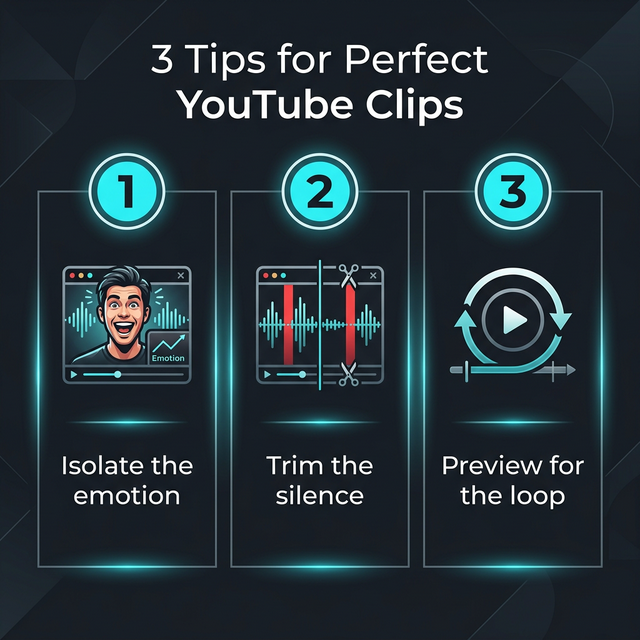
To get the most out of your clips, follow these three simple rules:
1. Identify the "Narrative Arc"
Even a 2-second GIF has a story. Ensure your clip captures the setup, the action, and the result. If a character is falling, start when they trip and end when they hit the ground.
2. Crop for Emphasis
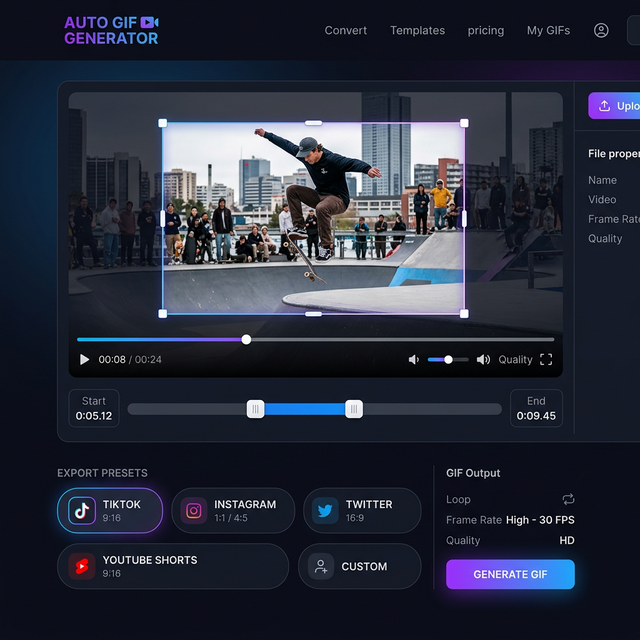
YouTube videos are usually 16:9. If the action is only in the middle of the screen, use our Crop tool to zoom in. This makes the GIF much more impactful and easier to see on mobile devices.
3. Use HD Sources
If you're clipping a YouTube video, always try to use the 1080p or 4K version. Our engine will handle the downscaling for the GIF, which results in a much sharper final product than if you started with 480p source material.
Fast Workflow: YouTube Clip to GIF
| Step | Action | Time Estimate | | :--- | :--- | :--- | | 1. Find | Locate the timestamp on YouTube. | 10 seconds | | 2. Select | Use our timeline markers to frame the clip. | 5 seconds | | 3. Optimize | Choose a preset (e.g., Discord < 10MB). | 2 seconds | | 4. Generate | Click convert and wait for the magic. | 8 seconds |
Why Clipping is Better than Linking
- No Ads: Unlike sharing a YouTube link, a GIF has zero ads or distractions.
- Immediate Value: Recipients don't have to wait for a video player to load.
- Native Experience: GIFs feel like part of the conversation, not an external link.
FAQ: Mastering the Clip
Q: Can I clip a live YouTube stream to a GIF? A: Most live streams can be clipped after the broadcast has ended and YouTube has processed the VOD (Video on Demand). Some tools even allow real-time clipping during the stream!
Q: What if the clip I want is very dark? A: Our YouTube clip to GIF tool includes brightness and contrast adjustments to ensure your dark gaming highlights are visible to everyone.
Share Your Hits Today
Don't let those great YouTube moments disappear into the depths of a 10-hour VOD. Master the YouTube clip to GIF process and start building your own library of viral content.
Ready to clip? Try CropGIF now.
About CropGIF Team
Editorial Team · CropGIF
We build and maintain CropGIF and write practical guides for image optimization and web performance.